How to transfer an eSIM to a new phone and keep your number
Key takeaways
- You can transfer an eSIM to a new phone, but there's no physical card to swap. Either your network moves it from phone to phone or it sends you a new QR code to scan on the new phone.
- To transfer an eSIM to a new iPhone, place both iPhones close together, then go to Settings, Mobile Service, Add eSIM, and choose Transfer From Nearby iPhone.
- If your network doesn't support phone-to-phone transfer, or you no longer have your old phone, ask your network for a new eSIM. Your number stays the same.
New phone in hand, old phone still holding your number. With a physical SIM, you'd just pop the card across. With an eSIM, there's nothing to pop.
Moving an eSIM is usually quicker than waiting for a SIM to arrive by post. The catch is that the method depends on your phone and your network, so here's how to work out which route you need.
Can you transfer an eSIM to another phone?
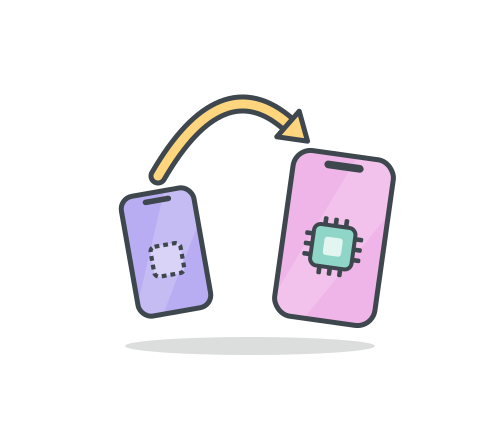
Yes. An eSIM is built into your phone, so you can't physically move it. Instead, it's set up on the new phone, and the old phone stops using it. You can do this in two ways:
| Route | When it works | What you need |
|---|---|---|
| Phone-to-phone transfer (Apple's eSIM Quick Transfer) | Moving between two iPhones when your network supports it | Both iPhones nearby with Bluetooth on, signed in to the same Apple Account, and running iOS 18.4 or later |
| A new QR code from your network | Any phone and any network, including when your old phone is lost or broken | Access to your account or customer support, and Wi-Fi on the new phone |
Before you start
A few minutes of prep saves a lot of faff.
- Keep your old phone switched on and nearby until the transfer is finished.
- Connect your new phone to Wi-Fi so it can download the eSIM.
- Update both phones to the latest software.
- Don't wipe, sell or trade in the old phone until the new one has signal.
- Check the new phone supports eSIM. Our list of eSIM-compatible phones will tell you.
How to transfer an eSIM to a new iPhone
Option 1: Use eSIM Quick Transfer
This moves your eSIM straight from the old iPhone to the new one. Both iPhones need Bluetooth on, the same Apple Account, and iOS 18.4 or later. Your network also has to support it.
- On the new iPhone, open Settings and tap Mobile Service.
- Tap Set Up Mobile Service or Add eSIM.
- Choose your number from the list. If no list appears, tap Transfer From Nearby iPhone.
- On the old iPhone, confirm the transfer. If asked, enter the verification code shown on the new iPhone.
- Wait for the plan to activate on the new iPhone.
If a banner says Finish Setting Up Your Carrier's Mobile Service Plan, tap it. It takes you to your network's website to finish the job.
Option 2: Scan a QR code from your network
No transfer option on screen? Your network probably needs to issue a new eSIM, which usually arrives as a QR code by email or in your online account.
- Get the QR code from your network.
- On the new iPhone, go to Settings, then Mobile Service, then Add eSIM.
- Choose Use QR Code and scan it.
- Follow the prompts and wait for the eSIM to activate.
Many QR codes only work once, so scan yours on the phone you actually want to use. If it fails, ask your network for a fresh one.
How to transfer an eSIM to a new Android phone
Android menus vary by brand, so the names change a little. The route is the same.
- Connect the new phone to Wi-Fi.
- Open Settings and look for SIMs or SIM manager, often under Network & internet or Connections.
- Choose the option to add an eSIM.
- Scan the QR code your network sent you, or enter the activation code if you can't scan it.
What if you don't have your old phone?
Lost, broken, or already traded in? You can still get your number onto the new phone. Quick Transfer needs the old iPhone, so skip it and ask your network for a new eSIM instead.
Be prepared for one snag. Some networks send a verification code to the number you're trying to move, which isn't much use if it's on the old phone. If that happens, contact customer support and tell them you no longer have the old phone. They can check it's you another way.
Some networks also charge for a replacement eSIM, so it's worth checking before you ask for one.
If you're on SMARTY
With SMARTY, you can move your eSIM entirely from your dashboard:
- Go to Account settings, then Manage plan, then Replace SIM.
- Choose New device as the reason, then pick eSIM.
- Open the email we send you and scan the QR code on your new phone. Our eSIM setup guide shows you how.
- Enter the 4-digit confirmation code from your dashboard to finish.
Worth knowing:
- The QR code can only be used once, and it expires after 60 days.
- If you choose Activate now, your old eSIM is disconnected straight away, so wait until the new phone is in your hand.
- Activation is usually instant, though it can take up to two hours.
Thinking about upgrading your plan while you're at it? You can see what's on offer on our eSIM plan. Or not on SMARTY yet? Choose eSIM at checkout and skip the wait for a SIM in the post.
FAQs
Does my eSIM transfer automatically to a new iPhone?
Not usually. Unless the new iPhone offers to move the eSIM during setup, the transfer has to be started with eSIM Quick Transfer or a new QR code from the network.
Why won't my eSIM transfer to my new iPhone?
The usual causes include a network that doesn't support eSIM Quick Transfer, two iPhones signed in to different Apple Accounts, or a phone that needs a software update. Restarting both iPhones can help. If the option still doesn't appear, asking your network for a new QR code is the quickest fix.
Will my old phone still work after I transfer my eSIM?
The old phone still works on Wi-Fi, but it can no longer use that eSIM for calls, texts or mobile data once the new phone is active. To use one number on two phones at once, see our guide on how many eSIMs you can have.

- SMARTY Team
- SMARTY
- October 21st, 2026